Visual workflow reference
These illustrations correspond to the main documentation sections below. The live MaxPrintAlign interface and the written documentation remain the exact operating reference.
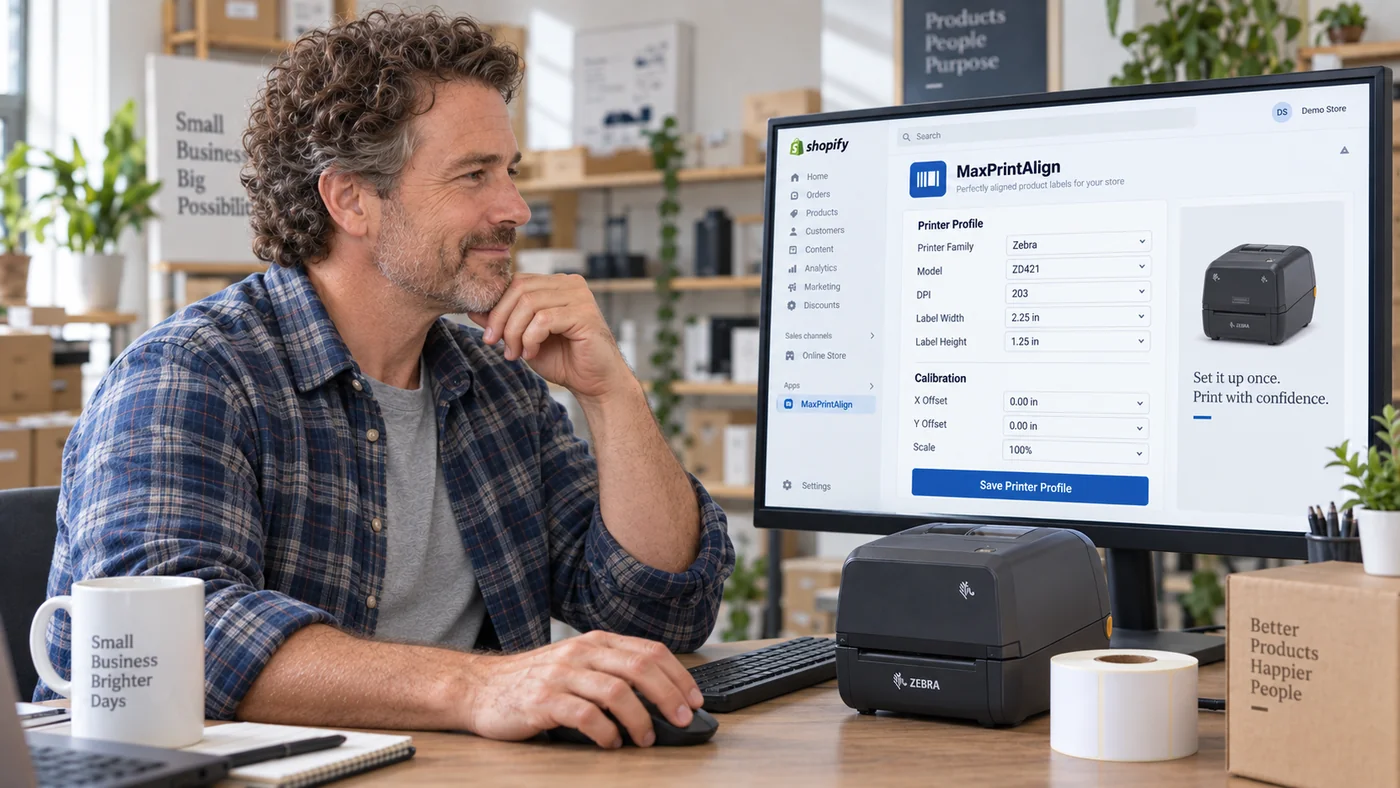 Printer profiles
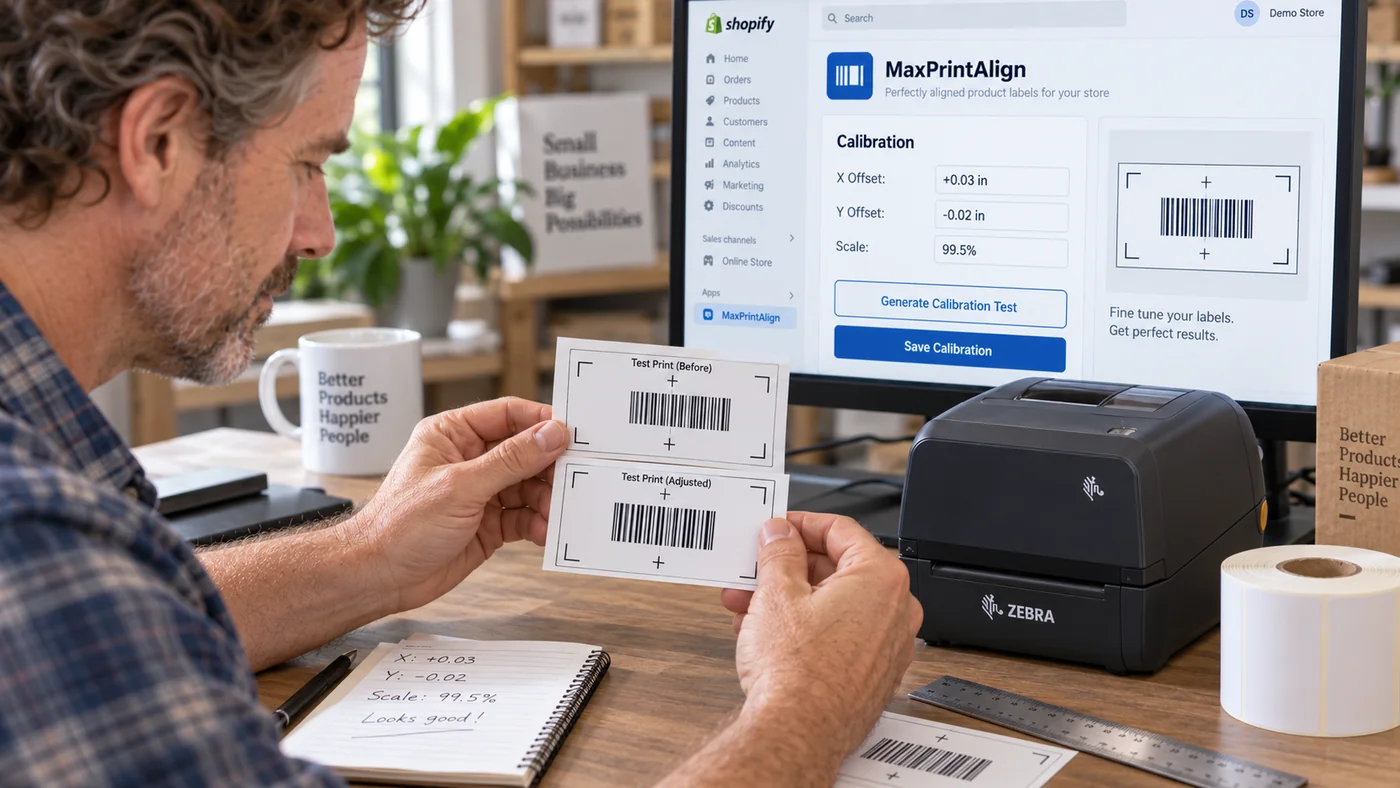 Calibration
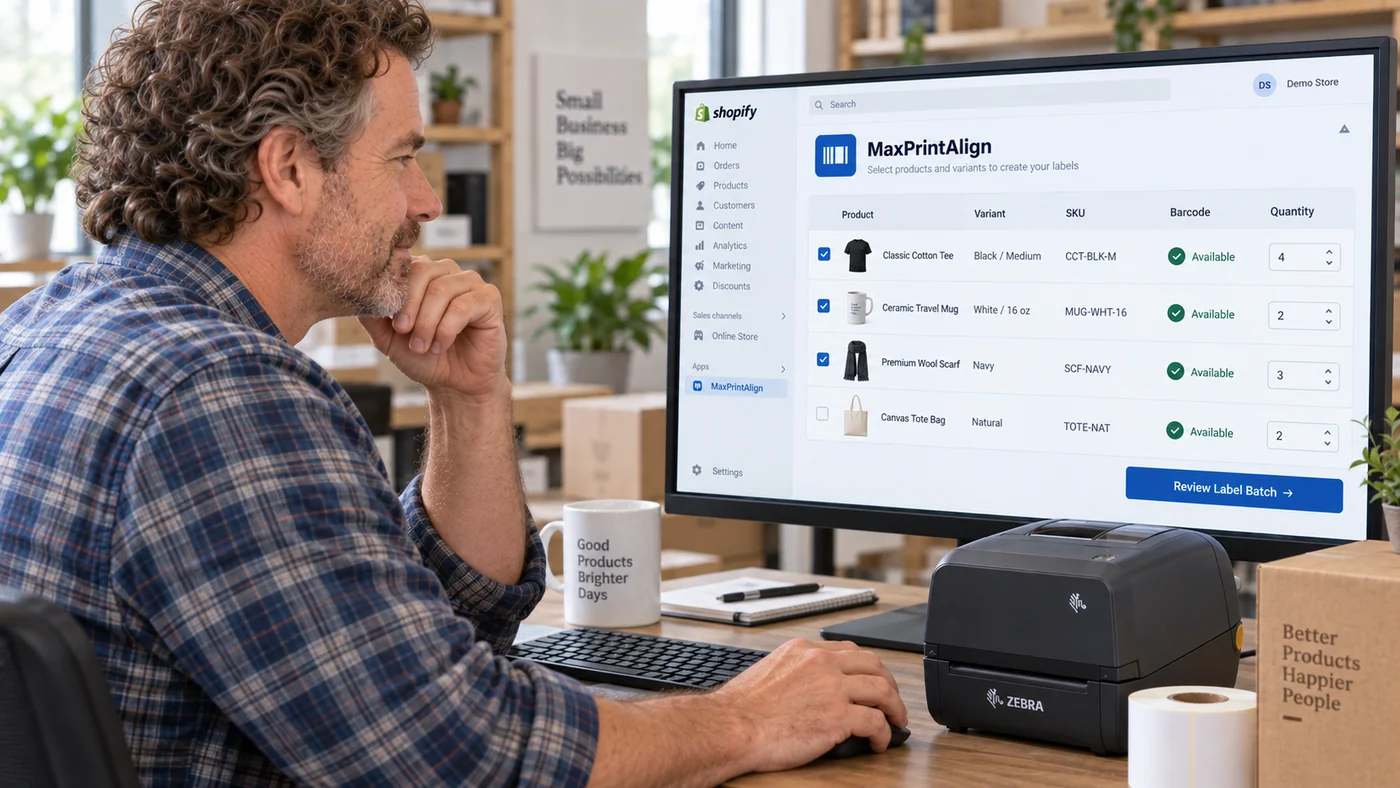 Printable products
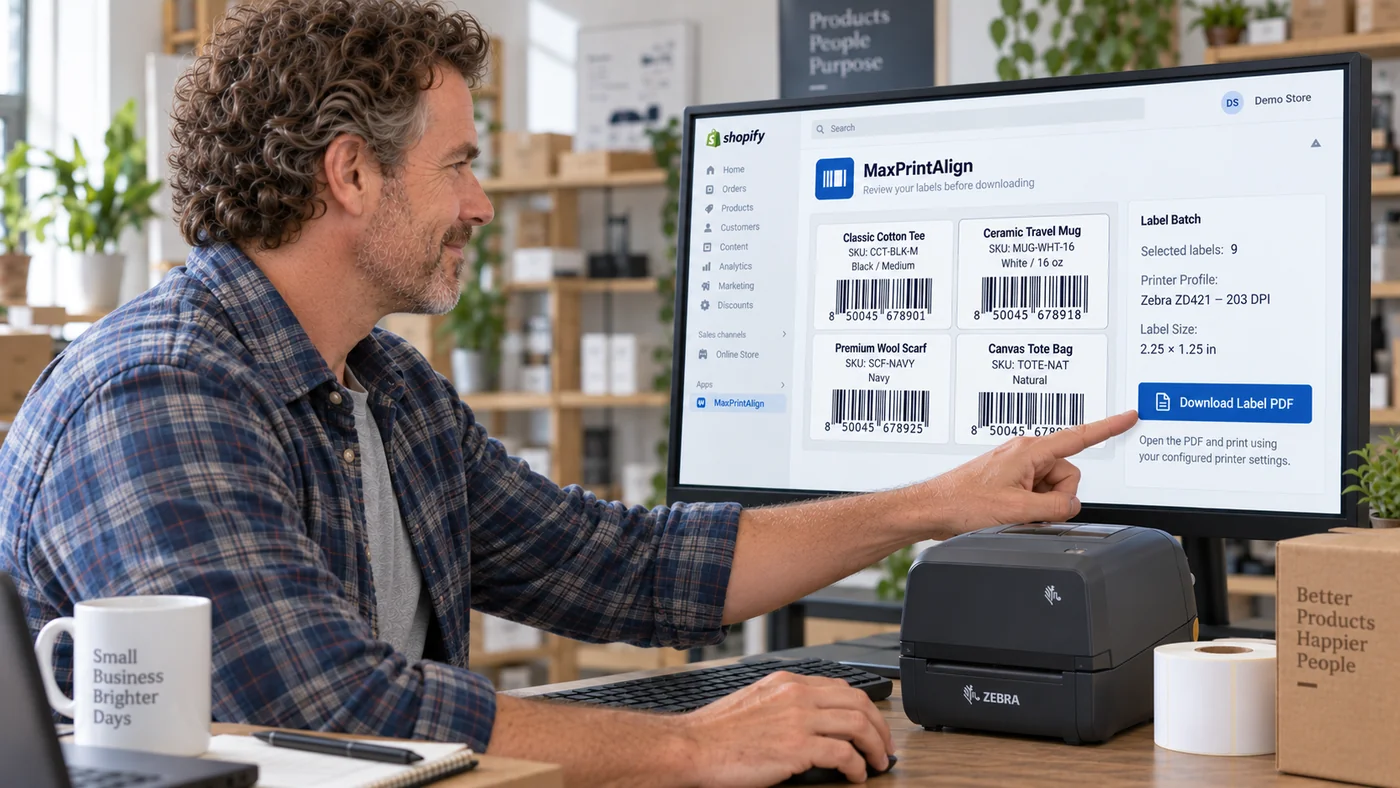 Review and PDF
Illustrative visuals are for orientation; screenshots of the live app may differ as the interface evolves.
Overview
MaxPrintAlign is a Shopify Admin app focused on printer-aware barcode label output. The workflow is: save a printer profile → calibrate → select products → review → generate/download PDF.
It is not a GTIN/UPC generator, SKU generator, inventory-management replacement, or general graphic-design suite.
Shopify permissions
MaxPrintAlign requests read access to Shopify product data needed to identify printable product variants and label information.
The current label workflow does not require inventory, location, customer, or order scopes.
Printer profiles
A printer profile represents a printer plus the label stock used with it. Profiles can include model, DPI, label width/height, and calibration values.
Presets and custom setup
Common presets are convenience starting points. Use Other / Custom when needed. A preset does not remove the need to calibrate on actual hardware.
Supported printers & compatibility
MaxPrintAlign includes setup presets for common Zebra, DYMO, Brother, and Rollo printer families, plus a Generic / Custom option for other label printers.
Printer presets are starting points, not model-by-model certification. Compatibility depends on the printer, driver, supported media size, DPI, scaling settings, and calibration.
Printer families available as setup starting points
- Zebra thermal label printers
- DYMO label printers
- Brother label printers
- Rollo thermal label printers
- Generic / Custom printers
Using another printer
Your printer may still work even when its brand or model is not listed. Use the Generic / Custom profile when the printer driver can print PDF output at the label dimensions you need. Set the correct label width, height, and DPI, then use MaxPrintAlign calibration to correct small alignment differences.
For reliable output
The printer and driver should allow the required media dimensions and should print the generated PDF at Actual size / 100% without automatically fitting, shrinking, or enlarging the page.
Printer names and trademarks belong to their respective owners. A brand listed here does not imply endorsement, certification, partnership, or verification of every model made by that manufacturer.
Calibration
Calibration adjusts the physical relationship between generated label content and printer/media. User-facing controls include horizontal offset, vertical offset, nudge amount, and scale.
Actual size
Begin with 100% / Actual size and automatic scaling disabled. A correctly dimensioned PDF can still print incorrectly if a print dialog or driver rescales it.
When to recalibrate
Recalibrate after changing printer, stock, driver, DPI, media/sensor configuration, or print settings if alignment changes.
Printable products
A variant is printable when it has an existing Shopify barcode or SKU. Variants with neither are excluded.
Barcode first
If a barcode exists, MaxPrintAlign uses it.
SKU fallback
If no barcode exists but a SKU does, the SKU becomes the printable barcode value. This does not convert the SKU into an official UPC/GTIN.
Recent edits
After a Shopify product edit, allow the change to be reflected through Shopify and reload MaxPrintAlign before generating a new job.
Selection and review
Create Labels lets merchants choose a calibrated printer profile, search printable variants, select products, and set quantities. The Review screen shows the printer, label dimensions, totals, and label content. Previewing does not consume usage.
PDF generation and printing
MaxPrintAlign creates a PDF using the configured label dimensions. Print without additional scaling.
- 100% / Actual size
- Correct printer
- Correct media size
- Correct orientation
- Fit to page disabled
Hardware, drivers, sensors, stock tolerances, PDF viewers, and OS print settings can affect physical output.
Usage accounting
Calibration sheets are separate from product-label usage. Product labels are counted after successful PDF generation. Previewing does not count. Re-downloading the same completed saved job does not count it again.
Plan limits and pricing are shown in the app or Shopify App Store.
Recovery behavior
Expired PDF
A temporary PDF can expire while the completed saved job remains. An already-counted job can be regenerated without counting it again.
Generation failure
If PDF generation fails, the product-label allowance should not be charged and the app presents a recovery path.
No calibrated printer
Complete calibration before generating product labels.
Unauthenticated page
Merchant data pages must be opened through an authenticated Shopify Admin session.
Privacy and security
The app is designed to minimize the Shopify data required for its purpose. The current label workflow requests product read access and does not require inventory, location, customer, or order scopes. See the Privacy Policy.
Never send passwords, app secrets, access tokens, or payment-card information through support.
Troubleshooting
Output shifted
Confirm Actual size, then adjust the relevant horizontal or vertical offset in small steps.
Wrong physical size
Verify label dimensions, DPI, driver media size, and scaling before changing scale.
Product missing
Confirm it has an existing barcode or SKU and reload after Shopify reflects recent edits.
Barcode does not scan
Verify source value, print quality, printhead condition, contrast, scanner support, and that the driver did not distort the bars through scaling.
Still stuck?
Review the FAQ or use the Support Center.